Posts

OneStream Excel Addin and Formulas

How to keep Excel formulas intact, when refreshing Quick view with new PoV ? In the Quick View settings, at the top are two settings:  "Insert or Delete Rows (Columns) When Resizing Cube View content" Try turning both to "False"

Exporting data automatically to other systems, outside of OneStream

Image
Trying to automate a data extract process to send data from OneStream to another system eg ERP, Trintech, Anaplan etc.  Setup a data management job to export the data to a CSV on the file share.  Move that CSV file from the file share to my desktop for example (or any other file storage place).  You can use OneStream Business rule such as the Fdx functions within BRAPI, they are creating a data table object and they are retrieving the data very fast, they are all starting with BRApi.Import.Data.Fdx<Something> Screen shot below.

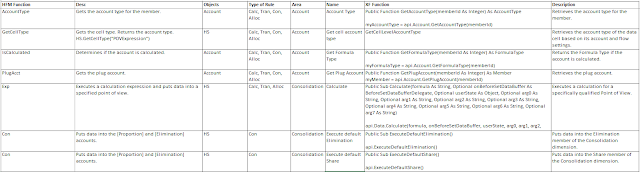
Hyperion HFM to OneStream Rules

Image
Following is a snippet that will  help plan rules from HFM to OneStream: Message me for the full file.

How to setup default home page for Users and OneStream logo ?

Image
If you are planning to build a default landing home page for users upon login, this is where the XML sits for that Dashboard. Follow the File Explorer path - Internal/Users/UserName, UserAppSettings.xml

OneStream Cloud application and Reset IIS pool steps

  Cloud Administration Tools Note this solution is only available for OneStream hosted cloud customers This is an XF MarketPlace solution that can be installed on OneStream version 4.3.x or higher. This option is available in the Windows Application and the Web Client. 1.  Once installed and set up, click Manage Applications . 2. Click the Show History Page button at the top right of the solution window. 3. As long as an application copy process isn't currently running, a Reset IIS button will be available. Click this to reset IIS on all servers. 4. You will then be presented with the following message, click confirm to reset IIS on all servers.

How to Recycle App Pool in OneStream windows application ?

Image
Goto Environment Tool Available from OneStream Version 5.0.x and only available within the Windows Application. 1. Within the Windows Application, go to System - Tools - Environment . 2. Within the Environment tool, find your Application Server Sets.  Expand if necessary and click on a server within the list of Application Servers that you wish to recycle. 3. Select the Behaviors tab and click the Recycle App Pool button to recycle the Application Pool (Reset IIS) on the selected server. Repeat these steps for any application servers that need their Application Pool recycled. NOTE: If the 'Recycle App Pool' button is not available, the field Can Recycle App Pool on Servers within the Application Server Configuration File needs to be set to 'True', this change needs to be saved to the file and IIS will need to be recycled for the change to take effect.

OneStream and How to recycle IIS Application Pools ?

There are three ways IIS Application Pools can be recycled (also known as resetting or restarting IIS) using OneStream. 1. Via the Windows App Environment Tool, available from version 5.x. This option is only available in the Windows Application client 2. Via System Diagnostics (minimum version 6.2) or Diagnostics 123, (minimum version 4.1)  These MarketPlace solutions can be run in the Windows App and the Web Client. 3. Via the Cloud Administration Tools XF MarketPlace solution, (minimum version 4.3.) This solution is available in the Windows Application and the Web Client. This is only available to customers hosted on OneStream Cloud. NOTE: Recycling an Application Pool will terminate all running processes on the servers included in the recycle process.